> ## Documentation Index
> Fetch the complete documentation index at: https://docs.salesduo.io/llms.txt
> Use this file to discover all available pages before exploring further.
# HubSpot Native Card
Add SalesDuo to your HubSpot Company, Contact or Deals.
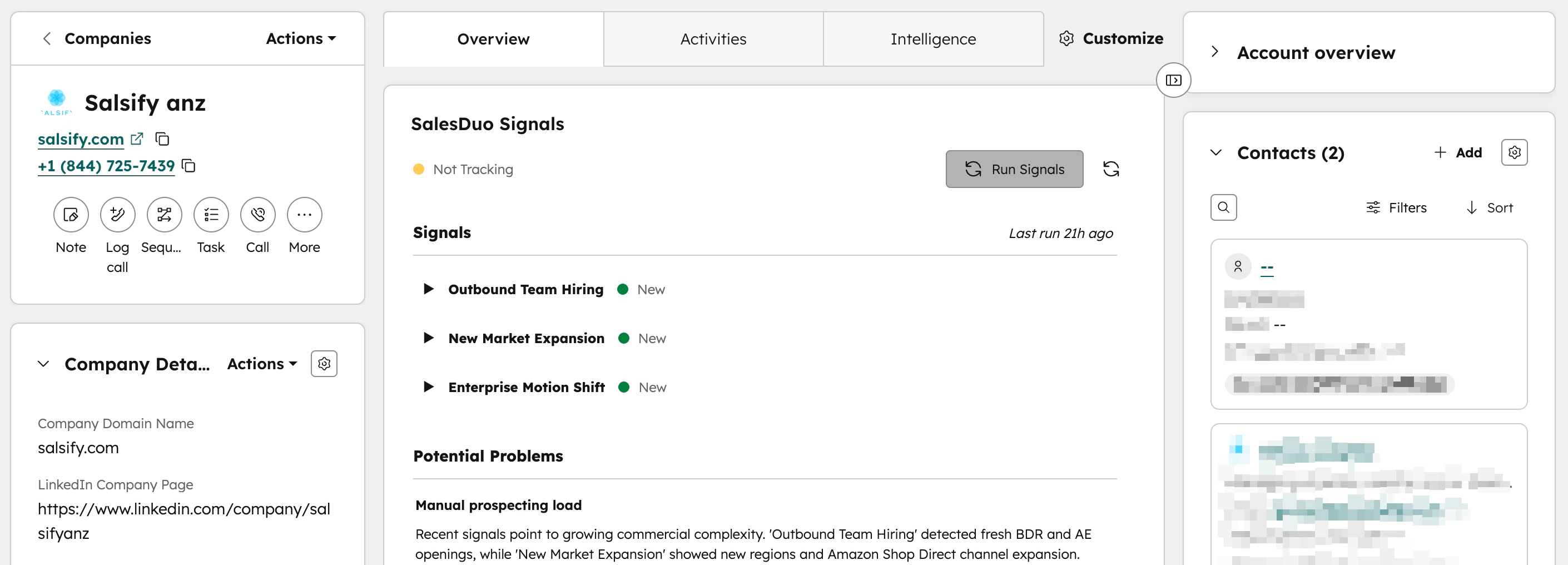 1. Go to **Settings** at the top bar
2. Scroll down on the left sidebar to find **Data Management** > **Objects > Companies**
3. In the Companies pane, click on **Record Customization**
4. Click into **Default view** (you can choose to create a new team view)
5. Under the **Edit Layout** tab in Company record page, hover between the section and click on **Add Card**
6. In the side panel, click on **Card library** tab > search **SalesDuo Signals**> click **+Add card**
You can **repeat step 2-4** to add **SalesDuo Signal Card** to Contacts view and Deals view
***
**For Visual Learners**
1. Go to **Settings** at the top bar
2. Scroll down on the left sidebar to find **Data Management** > **Objects > Companies**
3. In the Companies pane, click on **Record Customization**
4. Click into **Default view** (you can choose to create a new team view)
5. Under the **Edit Layout** tab in Company record page, hover between the section and click on **Add Card**
6. In the side panel, click on **Card library** tab > search **SalesDuo Signals**> click **+Add card**
You can **repeat step 2-4** to add **SalesDuo Signal Card** to Contacts view and Deals view
***
**For Visual Learners**